
XML ADD-IN Configuration
Activating Delete Feature
Register an APP in Azure AD
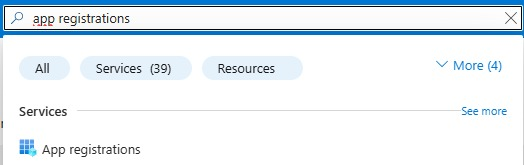
- Microsoft Entra ID -> App Registrations || search for App Registrations
- Create an New Registration in App Registrations
- Fill out the Register Options As Below and Create
-
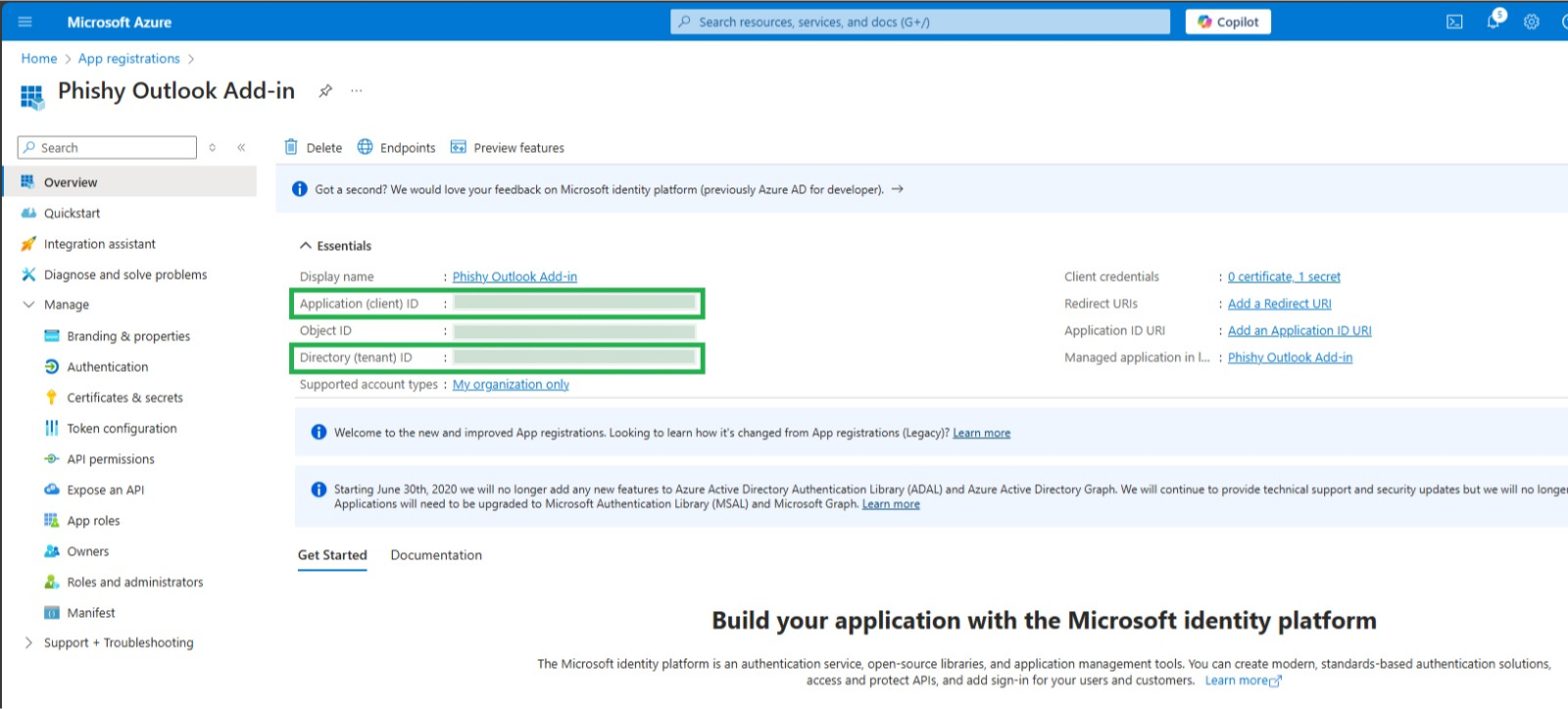
In Overview You will need
- Application (client) Id
- Directory (tenant) Id
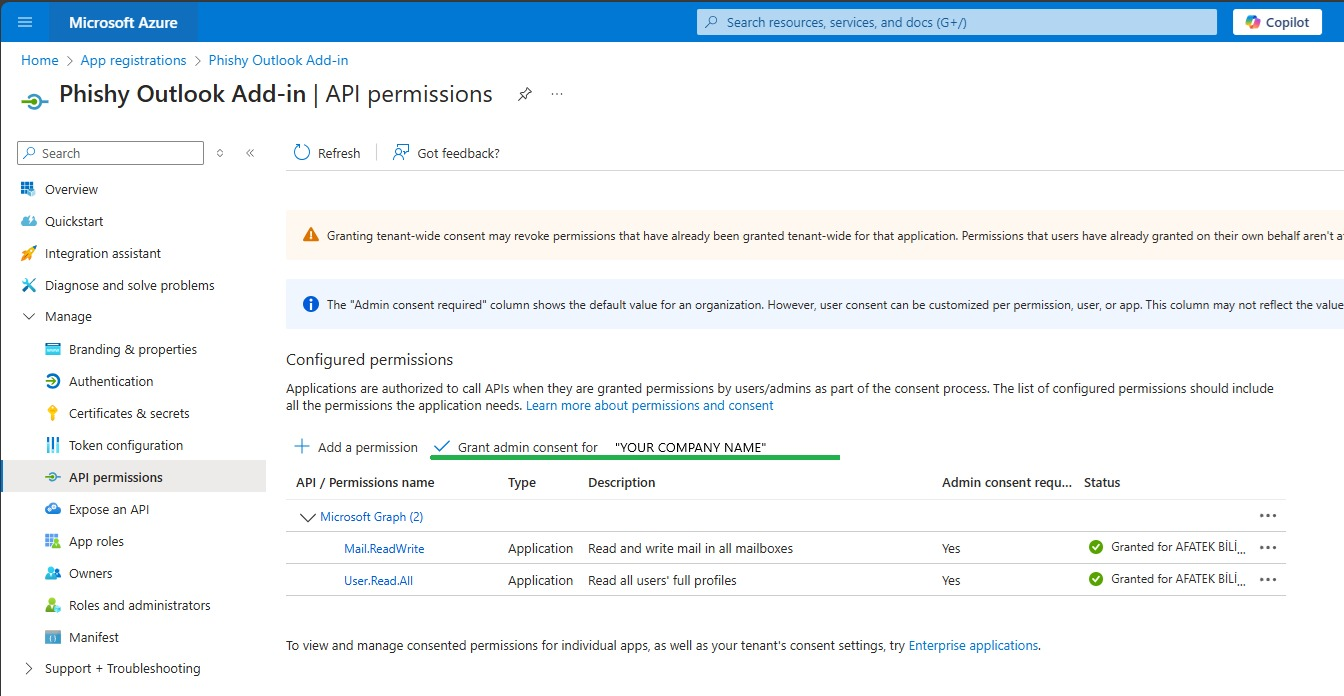
- Lastly In API Permissions tab, Add a permission and chose
- Microsoft Graph -> Application Permission
- User.Read.All
- Mail.ReadWrite
- Click Add Permissions
- Click ✓ Grant admin consent for “Your Company”
- After all these steps it should look like the image below
- Microsoft Graph -> Application Permission
Enable Deleting In Phishy UI
- In Phishy UI Go To: Incident Response -> Settings

- Under Addin Preferences (XML) see Cloud Accessible Status
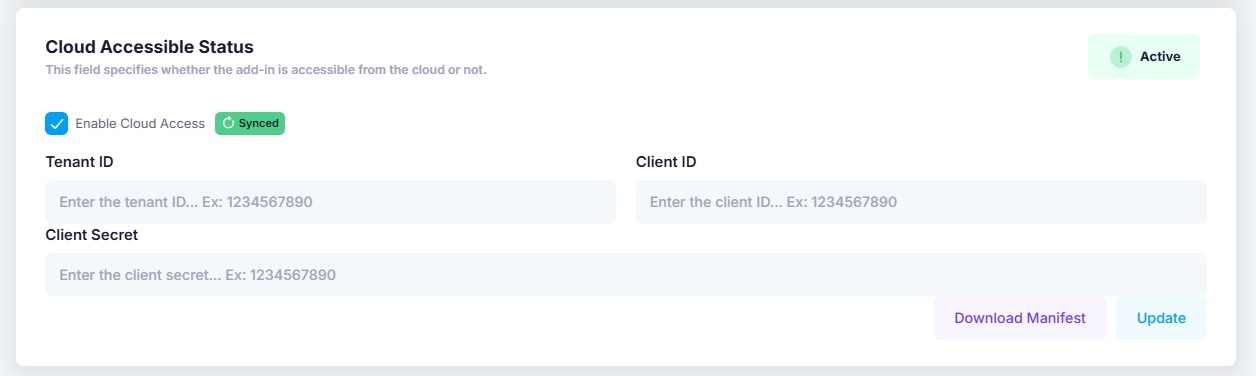
- Enter your Application (client) ID In Client ID section
- Enter your Directory (tenant) ID InTenant ID section
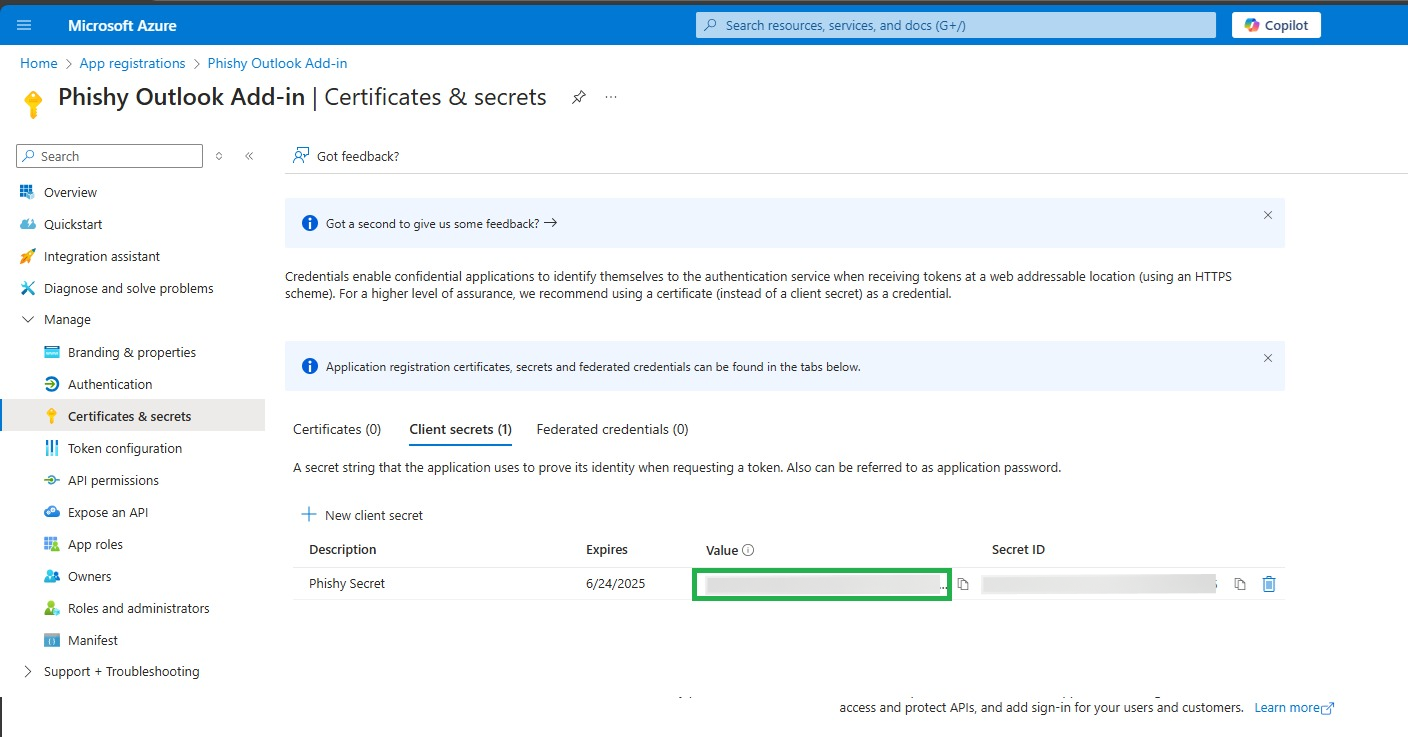
- Enter your Secret Value In Client Secret section
-
Finally Click
 button to Enable Email Deleting Feature